Poor photo quality is one of the most common problems in digital content blurry shots, low-resolution images, grain from low-light conditions, or compression artifacts from social media downloads. A good photo enhancer free online solves all of these automatically, in seconds, without software or technical skills. This guide explains what AI photo enhancement does, when to use it, and how to get the best results from any type of image.
What Is AI Photo Enhancement?
AI photo enhancement is the automatic improvement of image quality using machine learning. Unlike traditional editing where you manually adjust sharpness, noise, contrast, and resolution AI enhancement applies the right improvements automatically based on what it detects in your specific image.
The technology works because the model has been trained on millions of images and understands what high-quality photos look like. When it processes a low-quality image, it doesn’t apply generic filters it reconstructs the specific detail, sharpness, and clarity that should be present based on the image content.
Common Photo Quality Problems and How AI Fixes Them
| Problem | What Causes It | How AI Fixes It |
| Blur / softness | Missed focus, camera shake, slow shutter | Reconstructs sharp edges and fine detail from learned patterns |
| Digital noise / grain | High ISO, low light, old camera sensor | Identifies noise patterns and removes them while preserving real texture |
| Low resolution | Small sensor, old camera, compressed source | Upscales with AI-generated detail rather than pixel stretching |
| Compression artifacts | Repeated JPEG saving, social media download | Reduces blocky areas, recovers lost edge detail |
| Flat, dull appearance | Poor lighting, overexposure, faded photo | Improves color balance and local contrast naturally |
Choosing the Right Enhancement Mode
Not every photo has the same problem, and using the right approach produces significantly better results. Phototune.ai offers several dedicated modes each trained specifically for a different type of image:
| Mode | Best For | What It Improves |
| Enhance | General photos — landscapes, products, casual shots | Overall clarity, sharpness, and detail |
| Unblur | Blurry or out-of-focus images | Reconstructs edge detail and removes blur |
| Portrait | Faces and headshots | Skin texture, eye sharpness, hair detail |
| Old Photo | Aged, scanned, or degraded images | Grain, fading, blur, and missing detail |
| Text Enhance | Screenshots, documents, presentations | Letter clarity and readability |
| Upscale | Images that need to be larger | Adds resolution with AI-generated detail |
Step-by-Step: Improve Photo Quality Online
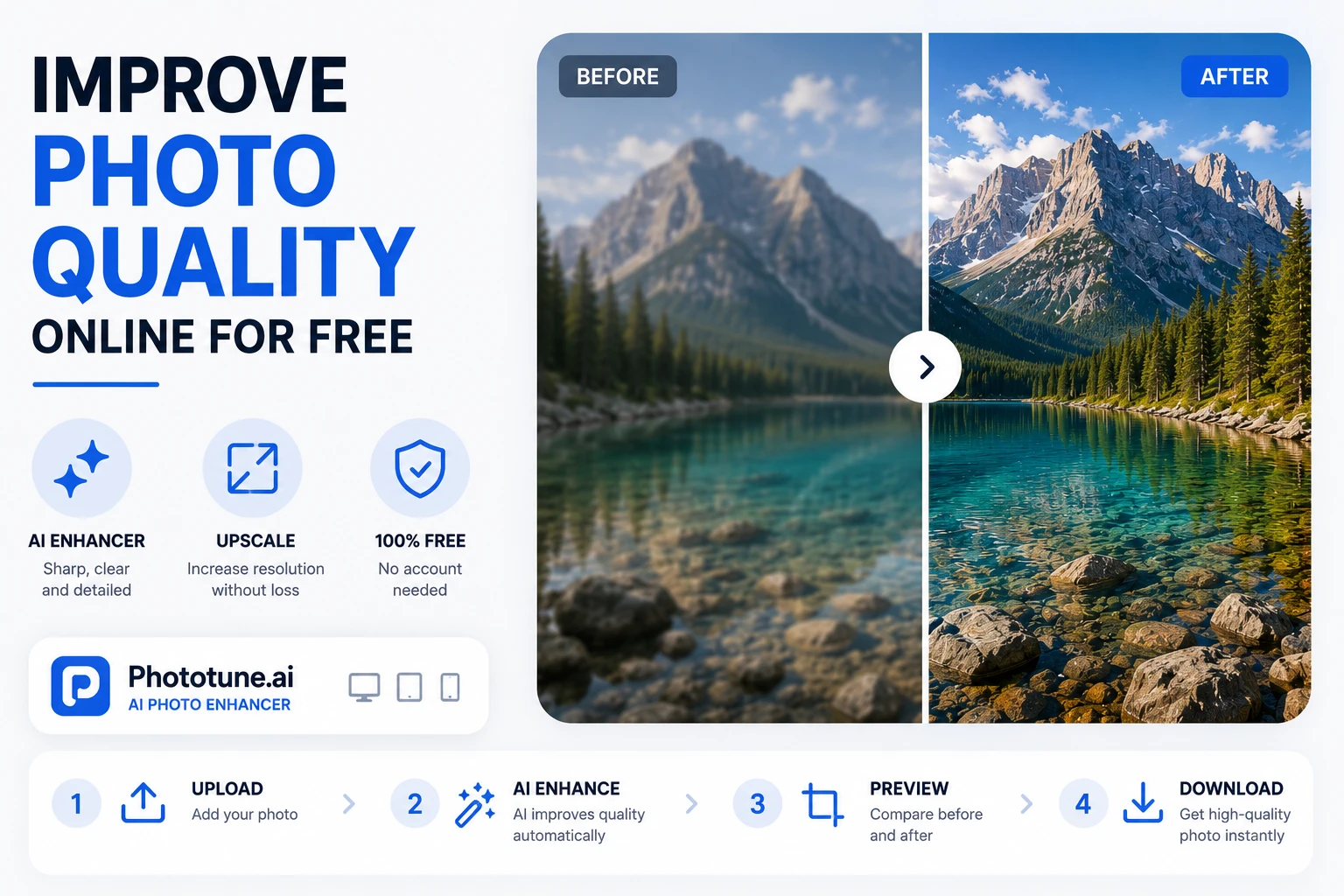
Step 1: Go to Phototune.ai and open the AI image enhancer. No account required works directly in any browser on desktop or mobile.
Step 2: Upload your photo. Drag and drop or click to browse. JPG, PNG, WEBP, and AVIF formats are supported up to 10MB.
Step 3: Select the enhancement mode that matches your photo type. For a general blurry photo, Enhance or Unblur works well. For a portrait, choose Portrait mode. For an old scan, use Old Photo mode.
Step 4: Choose your upscale level if you also need a larger image 2x for moderate enlargement, 4x for significant size increases.
Step 5: The AI processes the image in seconds. Use the before/after preview to compare. Download the enhanced version at full resolution when satisfied.
Which Photos See the Biggest Improvement?
AI enhancement works best when there’s detail to recover — either hidden under noise, compressed away, or blurred but still partially present. The improvements are most visible on:
- Portraits with soft focus — eyes, skin, and hair detail are restored naturally
- Product photos that are slightly out of focus edges become crisp and material textures more defined
- Old scanned prints — grain is reduced and fine detail is reconstructed
- Social media downloads — compression artifacts are cleaned up and sharpness is restored
- Low-light phone photos — noise is reduced while preserving real shadow detail
- Screenshots and documents — text becomes sharper and easier to read
Why AI Outperforms Traditional Sharpening
Standard sharpening filters increase the contrast between adjacent pixels they make edges look more defined by creating artificial transitions. The problem is that these filters treat every part of the image the same way, which often produces halos around edges, over-sharpened textures, or an unnatural look.
AI enhancement understands what’s in the image. A portrait mode model knows the difference between skin texture (preserve naturally) and digital noise (remove). A text mode knows the difference between letter shapes (sharpen specifically) and the background (leave alone). This content-awareness is what makes AI results look natural rather than over-processed.
Privacy and File Handling
Phototune.ai processes images locally in your browser your photos are not uploaded to an external server and are cleared from memory after processing. No account is required, which means no personal data is collected.
Try Phototune.ai’s AI photo quality enhancer free upload your photo, select the mode that fits your image type, and download a sharper, cleaner, higher-quality result in seconds. No account, no software, no cost.